sandwich_shop
Worksheet 7 — State Management and Persistence
What you need to know beforehand
Ensure that you have already completed the following:
- Worksheet 0 — Introduction to Dart, Git and GitHub.
- Worksheet 1 — Introduction to Flutter.
- Worksheet 2 — Stateless Widgets.
- Worksheet 3 — Stateful widgets.
- Worksheet 4 — App Architecture and Testing.
- Worksheet 5 — Data Models and Assets.
- Worksheet 6 — AI-Driven Development and Navigation.
Getting help
To get support with this worksheet, join the Discord channel and ask your questions there. Otherwise, attend your timetabled session and ask a member of staff for help.
Getting started
For this worksheet, you need to start with the code from branch 7 of our GitHub repository. You can either clone the repository and checkout branch 7:
git clone https://github.com/manighahrmani/sandwich_shop.git
cd sandwich_shop
git checkout 7
Or manually ensure your code matches the repository. Run the app to make sure everything works as expected before proceeding.
Introduction to App State Management
⚠️ Note: This is a comprehensive worksheet covering advanced topics you do not have to use to be able to pass your coursework. Complete as much as you can, but do not worry if you cannot finish everything.
So far, we’ve been managing ephemeral state within individual widgets using setState(). This works well for simple apps, but as your app grows, you’ll find that multiple screens need to share the same data. For example, both your order screen and cart screen need access to the cart data.
Currently, we pass the cart object between screens, but this becomes cumbersome when you have many screens that need the same data. This is where app state management comes in.
The Provider Package
Flutter offers several approaches to state management, but we’ll use the provider package because it’s simple to understand and widely used. The provider package uses concepts that apply to other state management approaches as well.
Add the provider package to your project:
flutter pub add provider
We have purposefully not talked about packages a lot so far and we will do so in #Third-Party Packages later in this worksheet. The provider package you have installed introduces three key concepts:
- Notifier: A class that extends the
ChangeNotifierclass and holds the app state. It notifies listeners when the state changes. OurCartclass will be our notifier. - Provider: A widget that provides an instance of a
ChangeNotifierto its descendants. Usually this is done at the top level of your app (in our case, inmain.dart). We will useChangeNotifierProviderto provide our cart model to the entire app. - Consumer: A widget that listens to changes in the provided notifier and rebuilds when notified. You will see how we will use
Consumer<Cart>to listen for changes in the cart and update the UI accordingly.
For a more in-depth explanation of these concepts, see this page on app state management.
Creating a Cart Model with ChangeNotifier
Let’s refactor our Cart class to extend ChangeNotifier (feel free to revisit our Object-Oriented Dart Worksheet for a refresher). This will allow widgets to listen for changes and automatically rebuild when the cart is modified.
Open lib/models/cart.dart and update it to the following:
import 'package:flutter/foundation.dart';
import 'sandwich.dart';
import 'package:sandwich_shop/repositories/pricing_repository.dart';

class Cart extends ChangeNotifier {
  final Map<Sandwich, int> _items = {};

  Map<Sandwich, int> get items => Map.unmodifiable(_items);

  void add(Sandwich sandwich, {int quantity = 1}) {
    if (_items.containsKey(sandwich)) {
      _items[sandwich] = _items[sandwich]! + quantity;
    } else {
      _items[sandwich] = quantity;
    }
    notifyListeners();
  }

  void remove(Sandwich sandwich, {int quantity = 1}) {
    if (_items.containsKey(sandwich)) {
      final currentQty = _items[sandwich]!;
      if (currentQty > quantity) {
        _items[sandwich] = currentQty - quantity;
      } else {
        _items.remove(sandwich);
      }
      notifyListeners();
    }
  }

  void clear() {
    _items.clear();
    notifyListeners();
  }

  double get totalPrice {
    final pricingRepository = PricingRepository();
    double total = 0.0;

    for (Sandwich sandwich in _items.keys) {
      int quantity = _items[sandwich]!;
      total += pricingRepository.calculatePrice(
        quantity: quantity,
        isFootlong: sandwich.isFootlong,
      );
    }

    return total;
  }

  bool get isEmpty => _items.isEmpty;

  int get length => _items.length;

  int get countOfItems {
    int total = 0;
    for (int quantity in _items.values) {
      total += quantity;
    }
    return total;
  }

  int getQuantity(Sandwich sandwich) {
    if (_items.containsKey(sandwich)) {
      return _items[sandwich]!;
    }
    return 0;
  }
}
Before committing your changes, see review the changes in the Source Control panel. The key changes are extending ChangeNotifier and calling notifyListeners() whenever the cart is modified. This tells any listening widgets that they need to rebuild.
Providing the Cart to the App
Now we need to make the cart available to all screens in our app. Update lib/main.dart:
import 'package:flutter/material.dart';
import 'package:provider/provider.dart';
import 'package:sandwich_shop/models/cart.dart';
import 'package:sandwich_shop/views/order_screen.dart';

void main() {
  runApp(const App());
}

class App extends StatelessWidget {
  const App({super.key});

  @override
  Widget build(BuildContext context) {
    return ChangeNotifierProvider(
      create: (BuildContext context) {
        return Cart();
      },
      child: const MaterialApp(
        title: 'Sandwich Shop App',
        debugShowCheckedModeBanner: false,
        home: OrderScreen(maxQuantity: 5),
      ),
    );
  }
}
Again, review the changes in the Source Control panel before committing. The ChangeNotifierProvider creates a single instance of Cart and makes it available to all descendant widgets. The create function is called once, so we have a single shared cart and context is passed to it so our provider (Cart) knows where it is in the widget tree.
We’ve also added debugShowCheckedModeBanner: false to remove the debug banner from the app. This is a purely aesthetic change.
Consuming the Cart in Screens
Now we need to update our screens to use the provided cart instead of creating their own instances. Let’s start with the order screen.
Update lib/views/order_screen.dart. First, add the provider import:
import 'package:provider/provider.dart';
Then, in the _OrderScreenState class, remove the final Cart _cart = Cart(); line defining the cart as a local instance variable and update the methods that use the cart:
class _OrderScreenState extends State<OrderScreen> {
  final TextEditingController _notesController = TextEditingController();

  SandwichType _selectedSandwichType = SandwichType.veggieDelight;
  bool _isFootlong = true;
  BreadType _selectedBreadType = BreadType.white;
  int _quantity = 1;

  @override
  void initState() {
    super.initState();
    _notesController.addListener(() {
      setState(() {});
    });
  }

  @override
  void dispose() {
    _notesController.dispose();
    super.dispose();
  }

  Future<void> _navigateToProfile() async {
    final Map<String, String>? result =
        await Navigator.push<Map<String, String>>(
      context,
      MaterialPageRoute<Map<String, String>>(
        builder: (BuildContext context) => const ProfileScreen(),
      ),
    );

    final bool hasResult = result != null;
    final bool widgetStillMounted = mounted;

    if (hasResult && widgetStillMounted) {
      _showWelcomeMessage(result);
    }
  }

  void _showWelcomeMessage(Map<String, String> profileData) {
    final String name = profileData['name']!;
    final String location = profileData['location']!;
    final String welcomeMessage = 'Welcome, $name! Ordering from $location';

    final SnackBar welcomeSnackBar = SnackBar(
      content: Text(welcomeMessage),
      duration: const Duration(seconds: 3),
    );

    ScaffoldMessenger.of(context).showSnackBar(welcomeSnackBar);
  }

  void _addToCart() {
    if (_quantity > 0) {
      final Sandwich sandwich = Sandwich(
        type: _selectedSandwichType,
        isFootlong: _isFootlong,
        breadType: _selectedBreadType,
      );

      final Cart cart = Provider.of<Cart>(context, listen: false);
      cart.add(sandwich, quantity: _quantity);

      String sizeText;
      if (_isFootlong) {
        sizeText = 'footlong';
      } else {
        sizeText = 'six-inch';
      }
      String confirmationMessage =
          'Added $_quantity $sizeText ${sandwich.name} sandwich(es) on ${_selectedBreadType.name} bread to cart';

      ScaffoldMessengerState scaffoldMessenger = ScaffoldMessenger.of(context);
      SnackBar snackBar = SnackBar(
        content: Text(confirmationMessage),
        duration: const Duration(seconds: 2),
      );
      scaffoldMessenger.showSnackBar(snackBar);
    }
  }

  VoidCallback? _getAddToCartCallback() {
    if (_quantity > 0) {
      return _addToCart;
    }
    return null;
  }

  void _navigateToCartView() {
    Navigator.push(
      context,
      MaterialPageRoute<void>(
        builder: (BuildContext context) => const CartScreen(),
      ),
    );
  }

  List<DropdownMenuEntry<SandwichType>> _buildSandwichTypeEntries() {
    List<DropdownMenuEntry<SandwichType>> entries = [];
    for (SandwichType type in SandwichType.values) {
      Sandwich sandwich =
          Sandwich(type: type, isFootlong: true, breadType: BreadType.white);
      DropdownMenuEntry<SandwichType> entry = DropdownMenuEntry<SandwichType>(
        value: type,
        label: sandwich.name,
      );
      entries.add(entry);
    }
    return entries;
  }

  List<DropdownMenuEntry<BreadType>> _buildBreadTypeEntries() {
    List<DropdownMenuEntry<BreadType>> entries = [];
    for (BreadType bread in BreadType.values) {
      DropdownMenuEntry<BreadType> entry = DropdownMenuEntry<BreadType>(
        value: bread,
        label: bread.name,
      );
      entries.add(entry);
    }
    return entries;
  }

  String _getCurrentImagePath() {
    final Sandwich sandwich = Sandwich(
      type: _selectedSandwichType,
      isFootlong: _isFootlong,
      breadType: _selectedBreadType,
    );
    return sandwich.image;
  }

  @override
  Widget build(BuildContext context) {
    return Scaffold(
      appBar: AppBar(
        leading: Padding(
          padding: const EdgeInsets.all(8.0),
          child: SizedBox(
            height: 100,
            child: Image.asset('assets/images/logo.png'),
          ),
        ),
        title: const Text(
          'Sandwich Counter',
          style: heading1,
        ),
        actions: [
          Consumer<Cart>(
            builder: (context, cart, child) {
              return Padding(
                padding: const EdgeInsets.all(8.0),
                child: Row(
                  mainAxisSize: MainAxisSize.min,
                  children: [
                    const Icon(Icons.shopping_cart),
                    const SizedBox(width: 4),
                    Text('${cart.countOfItems}'),
                  ],
                ),
              );
            },
          ),
        ],
      ),
      body: Center(
        child: SingleChildScrollView(
          child: Column(
            crossAxisAlignment: CrossAxisAlignment.stretch,
            children: [
              SizedBox(
                height: 300,
                child: Image.asset(
                  _getCurrentImagePath(),
                  fit: BoxFit.cover,
                  errorBuilder: (context, error, stackTrace) {
                    return const Center(
                      child: Text(
                        'Image not found',
                        style: normalText,
                      ),
                    );
                  },
                ),
              ),
              const SizedBox(height: 20),
              DropdownMenu<SandwichType>(
                width: double.infinity,
                label: const Text('Sandwich Type'),
                textStyle: normalText,
                initialSelection: _selectedSandwichType,
                onSelected: (SandwichType? value) {
                  if (value != null) {
                    setState(() => _selectedSandwichType = value);
                  }
                },
                dropdownMenuEntries: _buildSandwichTypeEntries(),
              ),
              const SizedBox(height: 20),
              Row(
                mainAxisAlignment: MainAxisAlignment.center,
                children: [
                  const Text('Six-inch', style: normalText),
                  Switch(
                    value: _isFootlong,
                    onChanged: (value) => setState(() => _isFootlong = value),
                  ),
                  const Text('Footlong', style: normalText),
                ],
              ),
              const SizedBox(height: 20),
              DropdownMenu<BreadType>(
                width: double.infinity,
                label: const Text('Bread Type'),
                textStyle: normalText,
                initialSelection: _selectedBreadType,
                onSelected: (BreadType? value) {
                  if (value != null) {
                    setState(() => _selectedBreadType = value);
                  }
                },
                dropdownMenuEntries: _buildBreadTypeEntries(),
              ),
              const SizedBox(height: 20),
              Row(
                mainAxisAlignment: MainAxisAlignment.center,
                children: [
                  const Text('Quantity: ', style: normalText),
                  IconButton(
                    onPressed: _quantity > 0
                        ? () => setState(() => _quantity--)
                        : null,
                    icon: const Icon(Icons.remove),
                  ),
                  Text('$_quantity', style: heading2),
                  IconButton(
                    onPressed: () => setState(() => _quantity++),
                    icon: const Icon(Icons.add),
                  ),
                ],
              ),
              const SizedBox(height: 20),
              StyledButton(
                onPressed: _getAddToCartCallback(),
                icon: Icons.add_shopping_cart,
                label: 'Add to Cart',
                backgroundColor: Colors.green,
              ),
              const SizedBox(height: 20),
              StyledButton(
                onPressed: _navigateToCartView,
                icon: Icons.shopping_cart,
                label: 'View Cart',
                backgroundColor: Colors.blue,
              ),
              const SizedBox(height: 20),
              StyledButton(
                onPressed: _navigateToProfile,
                icon: Icons.person,
                label: 'Profile',
                backgroundColor: Colors.purple,
              ),
              const SizedBox(height: 20),
              Consumer<Cart>(
                builder: (context, cart, child) {
                  return Text(
                    'Cart: ${cart.countOfItems} items - £${cart.totalPrice.toStringAsFixed(2)}',
                    style: normalText,
                    textAlign: TextAlign.center,
                  );
                },
              ),
              const SizedBox(height: 20),
            ],
          ),
        ),
      ),
    );
  }
}
You will have an error caused by how the CartScreen is constructed without a cart parameter. We will fix this next. Just review the changes in the Source Control panel.
Notice how we use Provider.of<Cart>(context, listen: false) to access the cart when we don’t need to rebuild the widget when the cart changes (hover your mouse over listen in VS Code to see what it does). This is also the case when adding items to the cart or navigating to another screen.
On the other hand, for the cart summary display and the cart indicator in the app bar, we use Consumer<Cart> to automatically rebuild when the cart changes. We additionally have a small cart indicator in the app that shows the total number of items in the cart.
Now update lib/views/cart_screen.dart to remove the cart parameter and use the provided cart instead:
import 'package:flutter/material.dart';
import 'package:provider/provider.dart';
import 'package:sandwich_shop/views/app_styles.dart';
import 'package:sandwich_shop/views/order_screen.dart';
import 'package:sandwich_shop/models/cart.dart';
import 'package:sandwich_shop/models/sandwich.dart';
import 'package:sandwich_shop/repositories/pricing_repository.dart';
import 'package:sandwich_shop/views/checkout_screen.dart';

class CartScreen extends StatefulWidget {
  const CartScreen({super.key});

  @override
  State<CartScreen> createState() {
    return _CartScreenState();
  }
}

class _CartScreenState extends State<CartScreen> {
  Future<void> _navigateToCheckout() async {
    final Cart cart = Provider.of<Cart>(context, listen: false);

    if (cart.items.isEmpty) {
      ScaffoldMessenger.of(context).showSnackBar(
        const SnackBar(
          content: Text('Your cart is empty'),
          duration: Duration(seconds: 2),
        ),
      );
      return;
    }

    final result = await Navigator.push(
      context,
      MaterialPageRoute(
        builder: (context) => const CheckoutScreen(),
      ),
    );

    if (result != null && mounted) {
      cart.clear();

      final String orderId = result['orderId'] as String;
      final String estimatedTime = result['estimatedTime'] as String;

      ScaffoldMessenger.of(context).showSnackBar(
        SnackBar(
          content:
              Text('Order $orderId confirmed! Estimated time: $estimatedTime'),
          duration: const Duration(seconds: 4),
          backgroundColor: Colors.green,
        ),
      );

      Navigator.pop(context);
    }
  }

  String _getSizeText(bool isFootlong) {
    if (isFootlong) {
      return 'Footlong';
    } else {
      return 'Six-inch';
    }
  }

  double _getItemPrice(Sandwich sandwich, int quantity) {
    final PricingRepository pricingRepository = PricingRepository();
    return pricingRepository.calculatePrice(
      quantity: quantity,
      isFootlong: sandwich.isFootlong,
    );
  }

  void _incrementQuantity(Sandwich sandwich) {
    final Cart cart = Provider.of<Cart>(context, listen: false);
    cart.add(sandwich, quantity: 1);
    ScaffoldMessenger.of(context).showSnackBar(
      const SnackBar(content: Text('Quantity increased')),
    );
  }

  void _decrementQuantity(Sandwich sandwich) {
    final Cart cart = Provider.of<Cart>(context, listen: false);
    final wasPresent = cart.items.containsKey(sandwich);
    cart.remove(sandwich, quantity: 1);
    if (!cart.items.containsKey(sandwich) && wasPresent) {
      ScaffoldMessenger.of(context).showSnackBar(
        const SnackBar(content: Text('Item removed from cart')),
      );
    } else {
      ScaffoldMessenger.of(context).showSnackBar(
        const SnackBar(content: Text('Quantity decreased')),
      );
    }
  }

  void _removeItem(Sandwich sandwich) {
    final Cart cart = Provider.of<Cart>(context, listen: false);
    cart.remove(sandwich, quantity: cart.getQuantity(sandwich));
    ScaffoldMessenger.of(context).showSnackBar(
      const SnackBar(content: Text('Item removed from cart')),
    );
  }

  @override
  Widget build(BuildContext context) {
    return Scaffold(
      appBar: AppBar(
        leading: Padding(
          padding: const EdgeInsets.all(8.0),
          child: SizedBox(
            height: 100,
            child: Image.asset('assets/images/logo.png'),
          ),
        ),
        title: const Text(
          'Cart View',
          style: heading1,
        ),
        actions: [
          Consumer<Cart>(
            builder: (context, cart, child) {
              return Padding(
                padding: const EdgeInsets.all(8.0),
                child: Row(
                  mainAxisSize: MainAxisSize.min,
                  children: [
                    const Icon(Icons.shopping_cart),
                    const SizedBox(width: 4),
                    Text('${cart.countOfItems}'),
                  ],
                ),
              );
            },
          ),
        ],
      ),
      body: Center(
        child: SingleChildScrollView(
          child: Consumer<Cart>(
            builder: (context, cart, child) {
              return Column(
                crossAxisAlignment: CrossAxisAlignment.stretch,
                children: [
                  const SizedBox(height: 20),
                  if (cart.items.isEmpty)
                    const Text(
                      'Your cart is empty.',
                      style: heading2,
                      textAlign: TextAlign.center,
                    )
                  else
                    for (MapEntry<Sandwich, int> entry in cart.items.entries)
                      Column(
                        children: [
                          Text(entry.key.name, style: heading2),
                          Text(
                            '${_getSizeText(entry.key.isFootlong)} on ${entry.key.breadType.name} bread',
                            style: normalText,
                          ),
                          Row(
                            mainAxisAlignment: MainAxisAlignment.center,
                            children: [
                              IconButton(
                                icon: const Icon(Icons.remove),
                                onPressed: () => _decrementQuantity(entry.key),
                              ),
                              Text(
                                'Qty: ${entry.value}',
                                style: normalText,
                              ),
                              IconButton(
                                icon: const Icon(Icons.add),
                                onPressed: () => _incrementQuantity(entry.key),
                              ),
                              const SizedBox(width: 16),
                              Text(
                                '£${_getItemPrice(entry.key, entry.value).toStringAsFixed(2)}',
                                style: normalText,
                              ),
                              IconButton(
                                icon: const Icon(Icons.delete),
                                tooltip: 'Remove item',
                                onPressed: () => _removeItem(entry.key),
                              ),
                            ],
                          ),
                          const SizedBox(height: 20),
                        ],
                      ),
                  Text(
                    'Total: £${cart.totalPrice.toStringAsFixed(2)}',
                    style: heading2,
                    textAlign: TextAlign.center,
                  ),
                  const SizedBox(height: 20),
                  Builder(
                    builder: (BuildContext context) {
                      final bool cartHasItems = cart.items.isNotEmpty;
                      if (cartHasItems) {
                        return StyledButton(
                          onPressed: _navigateToCheckout,
                          icon: Icons.payment,
                          label: 'Checkout',
                          backgroundColor: Colors.orange,
                        );
                      } else {
                        return const SizedBox.shrink();
                      }
                    },
                  ),
                  const SizedBox(height: 20),
                  StyledButton(
                    onPressed: () => Navigator.pop(context),
                    icon: Icons.arrow_back,
                    label: 'Back to Order',
                    backgroundColor: Colors.grey,
                  ),
                  const SizedBox(height: 20),
                ],
              );
            },
          ),
        ),
      ),
    );
  }
}
Again, you will have an error because the CheckoutScreen is constructed without a cart parameter. Review the changes in the Source Control and commit them.
Finally, update lib/views/checkout_screen.dart to use the provided cart:
import 'package:flutter/material.dart';
import 'package:provider/provider.dart';
import 'package:sandwich_shop/views/app_styles.dart';
import 'package:sandwich_shop/models/cart.dart';
import 'package:sandwich_shop/models/sandwich.dart';
import 'package:sandwich_shop/repositories/pricing_repository.dart';

class CheckoutScreen extends StatefulWidget {
  const CheckoutScreen({super.key});

  @override
  State<CheckoutScreen> createState() => _CheckoutScreenState();
}

class _CheckoutScreenState extends State<CheckoutScreen> {
  bool _isProcessing = false;

  Future<void> _processPayment() async {
    setState(() {
      _isProcessing = true;
    });

    await Future.delayed(const Duration(seconds: 2));

    final DateTime currentTime = DateTime.now();
    final int timestamp = currentTime.millisecondsSinceEpoch;
    final String orderId = 'ORD$timestamp';

    final Cart cart = Provider.of<Cart>(context, listen: false);
    final Map orderConfirmation = {
      'orderId': orderId,
      'totalAmount': cart.totalPrice,
      'itemCount': cart.countOfItems,
      'estimatedTime': '15-20 minutes',
    };

    if (mounted) {
      Navigator.pop(context, orderConfirmation);
    }
  }

  double _calculateItemPrice(Sandwich sandwich, int quantity) {
    PricingRepository repo = PricingRepository();
    return repo.calculatePrice(
        quantity: quantity, isFootlong: sandwich.isFootlong);
  }

  @override
  Widget build(BuildContext context) {
    return Scaffold(
      appBar: AppBar(
        leading: Padding(
          padding: const EdgeInsets.all(8.0),
          child: SizedBox(
            height: 100,
            child: Image.asset('assets/images/logo.png'),
          ),
        ),
        title: const Text('Checkout', style: heading1),
        actions: [
          Consumer<Cart>(
            builder: (context, cart, child) {
              return Padding(
                padding: const EdgeInsets.all(8.0),
                child: Row(
                  mainAxisSize: MainAxisSize.min,
                  children: [
                    const Icon(Icons.shopping_cart),
                    const SizedBox(width: 4),
                    Text('${cart.countOfItems}'),
                  ],
                ),
              );
            },
          ),
        ],
      ),
      body: Padding(
        padding: const EdgeInsets.symmetric(horizontal: 16.0),
        child: Consumer<Cart>(
          builder: (context, cart, child) {
            List<Widget> columnChildren = [];

            columnChildren.add(const Text('Order Summary', style: heading2));
            columnChildren.add(const SizedBox(height: 20));

            for (MapEntry<Sandwich, int> entry in cart.items.entries) {
              final Sandwich sandwich = entry.key;
              final int quantity = entry.value;
              final double itemPrice = _calculateItemPrice(sandwich, quantity);

              final Widget itemRow = Row(
                mainAxisAlignment: MainAxisAlignment.spaceBetween,
                children: [
                  Text(
                    '${quantity}x ${sandwich.name}',
                    style: normalText,
                  ),
                  Text(
                    '£${itemPrice.toStringAsFixed(2)}',
                    style: normalText,
                  ),
                ],
              );

              columnChildren.add(itemRow);
              columnChildren.add(const SizedBox(height: 8));
            }

            columnChildren.add(const Divider());
            columnChildren.add(const SizedBox(height: 10));

            final Widget totalRow = Row(
              mainAxisAlignment: MainAxisAlignment.spaceBetween,
              children: [
                const Text('Total:', style: heading2),
                Text(
                  '£${cart.totalPrice.toStringAsFixed(2)}',
                  style: heading2,
                ),
              ],
            );
            columnChildren.add(totalRow);
            columnChildren.add(const SizedBox(height: 40));

            columnChildren.add(
              const Text(
                'Payment Method: Card ending in 1234',
                style: normalText,
                textAlign: TextAlign.center,
              ),
            );
            columnChildren.add(const SizedBox(height: 20));

            if (_isProcessing) {
              columnChildren.add(
                const Center(
                  child: CircularProgressIndicator(),
                ),
              );
              columnChildren.add(const SizedBox(height: 20));
              columnChildren.add(
                const Text(
                  'Processing payment...',
                  style: normalText,
                  textAlign: TextAlign.center,
                ),
              );
            } else {
              columnChildren.add(
                ElevatedButton(
                  onPressed: _processPayment,
                  child: const Text('Confirm Payment', style: normalText),
                ),
              );
            }

            return Column(
              children: columnChildren,
            );
          },
        ),
      ),
    );
  }
}
Don’t forget to update the profile screen to maintain consistency with the app bar design. This is a new page that we have added (it was one of the exercises from the previous worksheet). In lib/views/profile_screen.dart, add the provider import at the top of the file:
import 'package:provider/provider.dart';
import 'package:sandwich_shop/models/cart.dart';
Then update the build method to add the cart indicator to the app bar while keeping the existing form functionality:
@override
Widget build(BuildContext context) {
  return Scaffold(
    appBar: AppBar(
      leading: Padding(
        padding: const EdgeInsets.all(8.0),
        child: SizedBox(
          height: 100,
          child: Image.asset('assets/images/logo.png'),
        ),
      ),
      title: const Text(
        'Profile',
        style: heading1,
      ),
      actions: [
        Consumer<Cart>(
          builder: (context, cart, child) {
            return Padding(
              padding: const EdgeInsets.all(8.0),
              child: Row(
                mainAxisSize: MainAxisSize.min,
                children: [
                  const Icon(Icons.shopping_cart),
                  const SizedBox(width: 4),
                  Text('${cart.countOfItems}'),
                ],
              ),
            );
          },
        ),
      ],
    ),
    body: Padding(
      padding: const EdgeInsets.all(16.0),
      child: Column(
        crossAxisAlignment: CrossAxisAlignment.stretch,
        children: [
          const Text('Enter your details:', style: heading2),
          const SizedBox(height: 20),
          TextField(
            controller: _nameController,
            decoration: const InputDecoration(
              labelText: 'Your Name',
              border: OutlineInputBorder(),
            ),
          ),
          const SizedBox(height: 16),
          TextField(
            controller: _locationController,
            decoration: const InputDecoration(
              labelText: 'Preferred Location',
              border: OutlineInputBorder(),
            ),
          ),
          const SizedBox(height: 20),
          ElevatedButton(
            onPressed: _saveProfile,
            child: const Text('Save Profile'),
          ),
        ],
      ),
    ),
  );
}
Note that we’re only updating the app bar section - the rest of the profile screen (the text controllers, form fields, and save functionality) remains unchanged from the previous worksheet.
Test your app to ensure the state management is working correctly. The cart should now be shared across all screens and automatically update when modified.
Before moving on, make sure to update the widget tests for all screens to check for the newly added functionality (some of the current tests will fail, and we have not tested the existence of the cart indicator).
Third-Party Packages
There are a lot of third-party Flutter packages that can add functionality to your app. These packages are published on pub.dev. Those of you who are familiar with JavaScript may find this similar to npm packages.
We recommend against using them as much as possible. Every package is a potential source of bugs and security vulnerabilities. Installing a package means trusting the package maintainers, who are often an open-source volunteer and not a professionals paid by Google. You are trusting them not to introduce malicious code or make mistakes that could affect your app. See this YouTube video for an example of one such incident that could have had catastrophic consequences: The largest supply-chain attack ever.
To add a package to your project, use the flutter pub add command:
flutter pub add package_name
This automatically adds the package to your pubspec.yaml file and downloads it. You can then import and use the package in your Dart code.
add is a subcommand of the flutter pub command. This is one of the many commands that Flutter provides to manage your project’s dependencies. You can learn more about flutter pub and its subcommands (e.g., outdated which lists outdated packages in your project) in the official documentation. Once you clone your project on a different machine, you can run flutter pub get to download all dependencies listed in pubspec.yaml although Visual Studio Code should do this automatically when you open the project.
For your coursework, minimize the number of third-party packages you use. Focus on learning Flutter’s built-in capabilities first.
Data Persistence
So far, all our app data, for example the cart contents, is lost when the app is closed. Real apps need to persist data. Flutter offers several approaches to data persistence, depending on your needs.
Shared Preferences for Simple Settings
For simple key-value data like user preferences, use the shared_preferences package. Some of you may have already used this package in the previous worksheet, feel free to skip this section if you have.
shared_preferences is perfect for storing settings like theme preferences, user names, or simple configuration options.
For this section, you must run the app on a device (your operating system, connected device or emulator) but not web. We will be building a settings screen which would allow us to modify the font size (the font sizes imported from app_styles.dart).
Add the package to your project:
flutter pub add shared_preferences
First, let’s update our app_styles.dart to load font sizes from shared preferences. This will make font size changes visible throughout the entire app. Update lib/views/app_styles.dart:
import 'package:flutter/material.dart';
import 'package:shared_preferences/shared_preferences.dart';

class AppStyles {
  static double _baseFontSize = 16.0;

  static Future<void> loadFontSize() async {
    final SharedPreferences prefs = await SharedPreferences.getInstance();
    _baseFontSize = prefs.getDouble('fontSize') ?? 16.0;
  }

  static Future<void> saveFontSize(double fontSize) async {
    final SharedPreferences prefs = await SharedPreferences.getInstance();
    await prefs.setDouble('fontSize', fontSize);
    _baseFontSize = fontSize;
  }

  static double get baseFontSize => _baseFontSize;

  static TextStyle get normalText => TextStyle(fontSize: _baseFontSize);

  static TextStyle get heading1 => TextStyle(
    fontSize: _baseFontSize + 8,
    fontWeight: FontWeight.bold,
  );

  static TextStyle get heading2 => TextStyle(
    fontSize: _baseFontSize + 4,
    fontWeight: FontWeight.bold,
  );
}

TextStyle get normalText => AppStyles.normalText;
TextStyle get heading1 => AppStyles.heading1;
TextStyle get heading2 => AppStyles.heading2;
Now create a settings screen that demonstrates shared preferences. Create a new file lib/views/settings_screen.dart:
import 'package:flutter/material.dart';
import 'package:sandwich_shop/views/app_styles.dart';

class SettingsScreen extends StatefulWidget {
  const SettingsScreen({super.key});

  @override
  State<SettingsScreen> createState() => _SettingsScreenState();
}

class _SettingsScreenState extends State<SettingsScreen> {
  double _fontSize = 16.0;
  bool _isLoading = true;

  @override
  void initState() {
    super.initState();
    _loadSettings();
  }

  Future<void> _loadSettings() async {
    await AppStyles.loadFontSize();
    setState(() {
      _fontSize = AppStyles.baseFontSize;
      _isLoading = false;
    });
  }

  Future<void> _saveFontSize(double fontSize) async {
    await AppStyles.saveFontSize(fontSize);
    setState(() {
      _fontSize = fontSize;
    });
  }

  @override
  Widget build(BuildContext context) {
    if (_isLoading) {
      return const Scaffold(
        body: Center(
          child: CircularProgressIndicator(),
        ),
      );
    }

    return Scaffold(
      appBar: AppBar(
        leading: Padding(
          padding: const EdgeInsets.all(8.0),
          child: SizedBox(
            height: 100,
            child: Image.asset('assets/images/logo.png'),
          ),
        ),
        title: Text('Settings', style: AppStyles.heading1),
      ),
      body: Padding(
        padding: const EdgeInsets.all(16.0),
        child: Column(
          children: [
            Text('Font Size', style: AppStyles.heading2),
            const SizedBox(height: 20),
            Text(
              'Current size: ${_fontSize.toInt()}px',
              style: TextStyle(fontSize: _fontSize),
            ),
            const SizedBox(height: 20),
            Slider(
              value: _fontSize,
              min: 12.0,
              max: 24.0,
              divisions: 6,
              label: _fontSize.toInt().toString(),
              onChanged: _saveFontSize,
            ),
            const SizedBox(height: 20),
            Text(
              'This is sample text to preview the font size.',
              style: TextStyle(fontSize: _fontSize),
            ),
            const SizedBox(height: 20),
            Text(
              'Font size changes are saved automatically. Restart the app to see changes in all screens.',
              style: AppStyles.normalText,
              textAlign: TextAlign.center,
            ),
            const SizedBox(height: 20),
            ElevatedButton(
              onPressed: () => Navigator.pop(context),
              child: Text('Back to Order', style: AppStyles.normalText),
            ),
          ],
        ),
      ),
    );
  }
}
Next, we need to initialise the font size when the app starts. Update lib/main.dart to load the saved font size:
import 'package:flutter/material.dart';
import 'package:provider/provider.dart';
import 'package:sandwich_shop/models/cart.dart';
import 'package:sandwich_shop/views/order_screen.dart';
import 'package:sandwich_shop/views/app_styles.dart';

void main() async {
  WidgetsFlutterBinding.ensureInitialized();
  await AppStyles.loadFontSize();
  runApp(const App());
}

class App extends StatelessWidget {
  const App({super.key});

  @override
  Widget build(BuildContext context) {
    return ChangeNotifierProvider(
      create: (BuildContext context) {
        return Cart();
      },
      child: const MaterialApp(
        title: 'Sandwich Shop App',
        debugShowCheckedModeBanner: false,
        home: OrderScreen(maxQuantity: 5),
      ),
    );
  }
}
Now add a button to navigate to the settings screen in your order screen. In lib/views/order_screen.dart, inside the _OrderScreenState class, add this method to handle navigation to the settings screen:
void _navigateToSettings() {
  Navigator.push(
    context,
    MaterialPageRoute<void>(
      builder: (BuildContext context) => const SettingsScreen(),
    ),
  );
}
Then add this button in the build method after the profile button:
const SizedBox(height: 20),
StyledButton(
  onPressed: _navigateToSettings,
  icon: Icons.settings,
  label: 'Settings',
  backgroundColor: Colors.grey,
),
Don’t forget to import the settings screen:
import 'package:sandwich_shop/views/settings_screen.dart';
Since our text styles are no longer constant (they now depend on shared preferences), you’ll need to remove the const keyword from widgets that use these styles. You’ll see errors like “Invalid constant value”.
The easiest way to fix these is to open the Problems panel in VS Code (in Command Palette, type “Problems: Focus on Problems View” and hit Enter), then look for errors related to const constructors. Right click on each error or select them and use the Quick Fix (Ctrl + . on Windows or ⌘ + . on Mac) to remove the const keyword.
See below what this should look like:
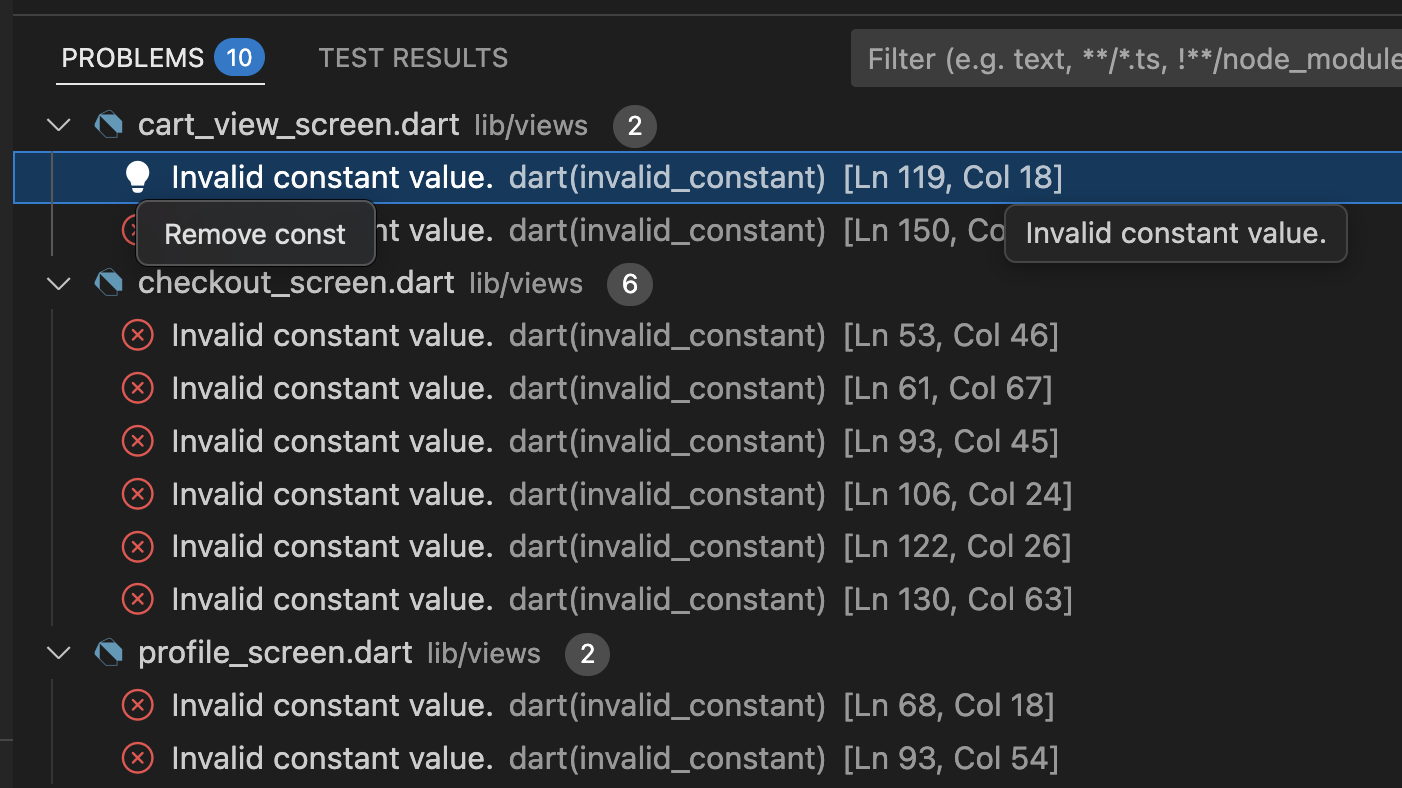
This would change:
const Center(
  child: Text(
    'Image not found',
    style: normalText,
  ),
)
To:
Center(
  child: Text(
    'Image not found',
    style: normalText,
  ),
)
You’ll need to do this for any widget that uses normalText, heading1, or heading2 styles.
Once you have tested the settings screen and ensured that font size changes persist across app restarts, add widget tests for the settings screen and make sure the tests still pass for all other screens. And as always remember to commit your changes regularly.
SQLite for Complex Data (Optional)
For more complex data that requires querying and relationships, use SQLite. This is suitable for storing structured data like order history, user profiles, or any data that benefits from SQL queries.
SQLite is similar to PostgreSQL but simpler. Like PostgreSQL, you create tables with columns and data types, but SQLite is embedded in your app rather than running as a separate server.
Note that the sqflite package works on Android, iOS, and macOS, but does not support web. For web applications, you would need to use sqflite_common_ffi_web or consider alternatives like shared_preferences for simple data (as covered in Worksheet 6) or cloud-based solutions. For your coursework, which targets web, the ideal solution for complex data storage is Firebase, which we will cover in Worksheet 8.
In this section, which is completely optional to do, we will implement a simple order history feature using SQLite. For more information on SQLite, see the official documentation. There are cross-platform SQLite support provided through packages like sqflite_common_ffi and sqflite_common_ffi_web packages although we have not tried them (and nor do we recommend them for your coursework).
Start by adding the required packages to your project with the following command. sqflite is the SQLite plugin for Flutter, and path helps with the location of the database file:
flutter pub add sqflite path
Let’s create a simple order history feature. First, create a model for saved orders. This model represents a row in our database table. Create lib/models/saved_order.dart:
class SavedOrder {
  final int id;
  final String orderId;
  final double totalAmount;
  final int itemCount;
  final DateTime orderDate;

  SavedOrder({
    required this.id,
    required this.orderId,
    required this.totalAmount,
    required this.itemCount,
    required this.orderDate,
  });

  Map<String, Object?> toMap() {
    return {
      'orderId': orderId,
      'totalAmount': totalAmount,
      'itemCount': itemCount,
      'orderDate': orderDate.millisecondsSinceEpoch,
    };
  }

  SavedOrder.fromMap(Map<String, Object?> map)
      : id = map['id'] as int,
        orderId = map['orderId'] as String,
        totalAmount = map['totalAmount'] as double,
        itemCount = map['itemCount'] as int,
        orderDate =
            DateTime.fromMillisecondsSinceEpoch(map['orderDate'] as int);
}
The toMap() method converts our Dart object into a Map (like a dictionary) that SQLite can store. The fromMap() constructor does the opposite - it takes a Map from SQLite and creates a Dart object. We store dates as milliseconds since epoch because SQLite doesn’t have a native date type.
Now create a database service to handle all database operations. Create lib/services/database_service.dart:
import 'dart:async';
import 'package:path/path.dart';
import 'package:sqflite/sqflite.dart';
import 'package:sandwich_shop/models/saved_order.dart';

class DatabaseService {
  static Database? _database;

  Future<Database> get database async {
    if (_database != null) return _database!;
    _database = await _initDatabase();
    return _database!;
  }

  Future<Database> _initDatabase() async {
    final String path = join(await getDatabasesPath(), 'sandwich_shop.db');

    return await openDatabase(
      path,
      version: 1,
      onCreate: (Database db, int version) async {
        await db.execute('''
          CREATE TABLE orders(
            id INTEGER PRIMARY KEY AUTOINCREMENT,
            orderId TEXT NOT NULL,
            totalAmount REAL NOT NULL,
            itemCount INTEGER NOT NULL,
            orderDate INTEGER NOT NULL
          )
        ''');
      },
    );
  }

  Future<void> insertOrder(SavedOrder order) async {
    final Database db = await database;
    await db.insert('orders', order.toMap());
  }

  Future<List<SavedOrder>> getOrders() async {
    final Database db = await database;
    final List<Map<String, Object?>> maps = await db.query(
      'orders',
      orderBy: 'orderDate DESC',
    );

    List<SavedOrder> orders = [];
    for (int i = 0; i < maps.length; i++) {
      orders.add(SavedOrder.fromMap(maps[i]));
    }
    return orders;
  }

  Future<void> deleteOrder(int id) async {
    final Database db = await database;
    await db.delete(
      'orders',
      where: 'id = ?',
      whereArgs: [id],
    );
  }
}
The database is created automatically when first accessed. The onCreate callback runs only once to set up the table structure. The maps.length gives us the number of rows returned from the query, and we use it to convert each row (Map) into a SavedOrder object.
Update the checkout screen to save orders to the database. In lib/views/checkout_screen.dart, add the imports:
import 'package:sandwich_shop/services/database_service.dart';
import 'package:sandwich_shop/models/saved_order.dart';
Then update the _processPayment method to the following:
Future<void> _processPayment() async {
  final Cart cart = Provider.of<Cart>(context, listen: false);

  setState(() {
    _isProcessing = true;
  });

  await Future.delayed(const Duration(seconds: 2));

  final DateTime currentTime = DateTime.now();
  final int timestamp = currentTime.millisecondsSinceEpoch;
  final String orderId = 'ORD$timestamp';

  final SavedOrder savedOrder = SavedOrder(
    id: 0, // Will be auto-generated by database
    orderId: orderId,
    totalAmount: cart.totalPrice,
    itemCount: cart.countOfItems,
    orderDate: currentTime,
  );

  final DatabaseService databaseService = DatabaseService();
  await databaseService.insertOrder(savedOrder);

  final Map orderConfirmation = {
    'orderId': orderId,
    'totalAmount': cart.totalPrice,
    'itemCount': cart.countOfItems,
    'estimatedTime': '15-20 minutes',
  };

  if (mounted) {
    Navigator.pop(context, orderConfirmation);
  }
}
Create an order history screen. Create lib/views/order_history_screen.dart:
import 'package:flutter/material.dart';
import 'package:sandwich_shop/views/app_styles.dart';
import 'package:sandwich_shop/services/database_service.dart';
import 'package:sandwich_shop/models/saved_order.dart';

class OrderHistoryScreen extends StatefulWidget {
  const OrderHistoryScreen({super.key});

  @override
  State<OrderHistoryScreen> createState() => _OrderHistoryScreenState();
}

class _OrderHistoryScreenState extends State<OrderHistoryScreen> {
  final DatabaseService _databaseService = DatabaseService();
  List<SavedOrder> _orders = [];
  bool _isLoading = true;

  @override
  void initState() {
    super.initState();
    _loadOrders();
  }

  Future<void> _loadOrders() async {
    final List<SavedOrder> orders = await _databaseService.getOrders();
    setState(() {
      _orders = orders;
      _isLoading = false;
    });
  }

  String _formatDate(DateTime date) {
    String output = '${date.day}/${date.month}/${date.year}';
    output += ' ${date.hour}:${date.minute.toString().padLeft(2, '0')}';
    return output;
  }

  @override
  Widget build(BuildContext context) {
    if (_isLoading) {
      return Scaffold(
        appBar: AppBar(
          leading: Padding(
            padding: const EdgeInsets.all(8.0),
            child: SizedBox(
              height: 100,
              child: Image.asset('assets/images/logo.png'),
            ),
          ),
          title: Text('Order History', style: AppStyles.heading1),
        ),
        body: const Center(child: CircularProgressIndicator()),
      );
    }

    if (_orders.isEmpty) {
      return Scaffold(
        appBar: AppBar(
          leading: Padding(
            padding: const EdgeInsets.all(8.0),
            child: SizedBox(
              height: 100,
              child: Image.asset('assets/images/logo.png'),
            ),
          ),
          title: Text('Order History', style: AppStyles.heading1),
        ),
        body: Center(
          child: Text('No orders yet', style: AppStyles.heading2),
        ),
      );
    }

    return Scaffold(
      appBar: AppBar(
        leading: Padding(
          padding: const EdgeInsets.all(8.0),
          child: SizedBox(
            height: 100,
            child: Image.asset('assets/images/logo.png'),
          ),
        ),
        title: Text('Order History', style: AppStyles.heading1),
      ),
      body: Padding(
        padding: const EdgeInsets.symmetric(horizontal: 16.0),
        child: Column(
          children: [
            const SizedBox(height: 20),
            Expanded(
              child: ListView.builder(
                itemCount: _orders.length,
                itemBuilder: (context, index) {
                  final SavedOrder order = _orders[index];
                  return Column(
                    children: [
                      Row(
                        mainAxisAlignment: MainAxisAlignment.spaceBetween,
                        children: [
                          Text(order.orderId, style: AppStyles.heading2),
                          Text('£${order.totalAmount.toStringAsFixed(2)}',
                              style: AppStyles.heading2),
                        ],
                      ),
                      const SizedBox(height: 8),
                      Row(
                        mainAxisAlignment: MainAxisAlignment.spaceBetween,
                        children: [
                          Text('${order.itemCount} items',
                              style: AppStyles.normalText),
                          Text(_formatDate(order.orderDate),
                              style: AppStyles.normalText),
                        ],
                      ),
                      const SizedBox(height: 20),
                    ],
                  );
                },
              ),
            ),
          ],
        ),
      ),
    );
  }
}
To navigate to this page, we need to add a button to lib/views/order_screen.dart that takes us to order history screen. In lib/views/order_screen.dart, inside the _OrderScreenState class, add this method after the existing navigation methods:
void _navigateToOrderHistory() {
  Navigator.push(
    context,
    MaterialPageRoute<void>(
      builder: (BuildContext context) => const OrderHistoryScreen(),
    ),
  );
}
And add this button in the build method after the settings button:
const SizedBox(height: 20),
StyledButton(
  onPressed: _navigateToOrderHistory,
  icon: Icons.history,
  label: 'Order History',
  backgroundColor: Colors.indigo,
),
Don’t forget to import the order history screen:
import 'package:sandwich_shop/views/order_history_screen.dart';
As with shared preferences, test this feature on a device or simulator (not web). Complete a few orders and navigate to the order history screen to see your saved orders.
The database file is stored at /data/data/<your_app_id>/databases/sandwich_shop.db on Android devices.
Remember to add widget tests for the order history screen and the updated checkout and order screens. Also, since we have added a model and a service, use your AI assistant to help you write unit tests for these new classes. To test SQLite functionality, you can use the sqflite_common_ffi package which allows you to run SQLite in a Dart VM environment (like during tests). Add it to your dev_dependencies in pubspec.yaml by running:
flutter pub add --dev sqflite_common_ffi
Read more about it in the official documentation. Once you have added all the tests, make sure to manually check to make sure all functionality is tested and that all tests pass by running flutter test.
We have not mentioned committing your changes in this section but we would ideally want you to commit each step of the way. For example, after creating the model, after creating the service, after updating the checkout screen, and after creating the order history screen. Well done if you have completed the worksheet up to this point!
Exercises
This week we have had a heavy worksheet so we will keep the exercises light. Complete the following exercises at your own pace.
-
Our codebase currently has a lot of redundancy and inconsistencies. For example, the app bar is implemented separately in each screen, and the cart indicator is also duplicated.
You can choose to place duplicated code (widgets) in a separate file, ideally called
common_widgets.dartinside theviewsfolder and import it wherever needed. You can for example, take your solution to the second exercise form Worksheet 6 and place it there. Think about what else can be placed there to decrease redundancy and declutter your codebase.The goal of this exercise is to eliminate duplication, standardize the look of the app across all screens, and ideally add a more consistent navigation experience.
⚠️ Describe your changes and show the app to a staff member for a sign-off (e.g., show them the file(s) containing the common widgets and how you have used them across the app).
-
(Advanced) Our database operations so far are only limited to creating a table, inserting and reading data. You are already familiar with SQL commands like
UPDATEandDELETEfrom your previous database module.Extend the functionality of the order history screen to allow users to modify their orders after a certain period of time (e.g., 5 minutes after placing the order).
This task is optional and there’s no need to show it to a member of staff for a sign-off.
-
(Advanced) We’ve shown you examples of unit testing and widget testing so far. Another type of testing is integration testing, which tests the complete app or a large part of it.
In Flutter, integration tests are written using the
integration_testpackage. You can read more about it in the official documentation. We will cover this topic in more detail in the next worksheet but you are welcome to explore it now.As a solid goal, write integration tests that cover the main user flows in your app, such as placing an order from start to finish.
This task is optional and there’s no need to show it to a member of staff for a sign-off.